Before you do anything else: if a company file appears damaged, inaccessible, or at risk, stop and read Before You Troubleshoot first. Backing up correctly before you act matters more than which fix you try first.
Most QuickBooks errors are solved faster by diagnosing than by repairing. Before changing anything, identify what failed (application, install, company file, network, banking, or payroll), confirm whether it affects one workstation or everyone, and make sure a current backup exists. From there, use Intuit's official QuickBooks Tool Hub for supported Desktop issues, follow the code-specific Intuit guidance for your exact error, and escalate to official Intuit support or a verified specialist if the problem persists. Never call a phone number you found in a search ad, forum post, or unfamiliar website — go directly to Intuit's official support site.
The QuickBooks Error Isolation Method
Rather than memorizing dozens of unrelated error codes, use one repeatable diagnostic sequence. This is the framework the rest of this guide is built around.
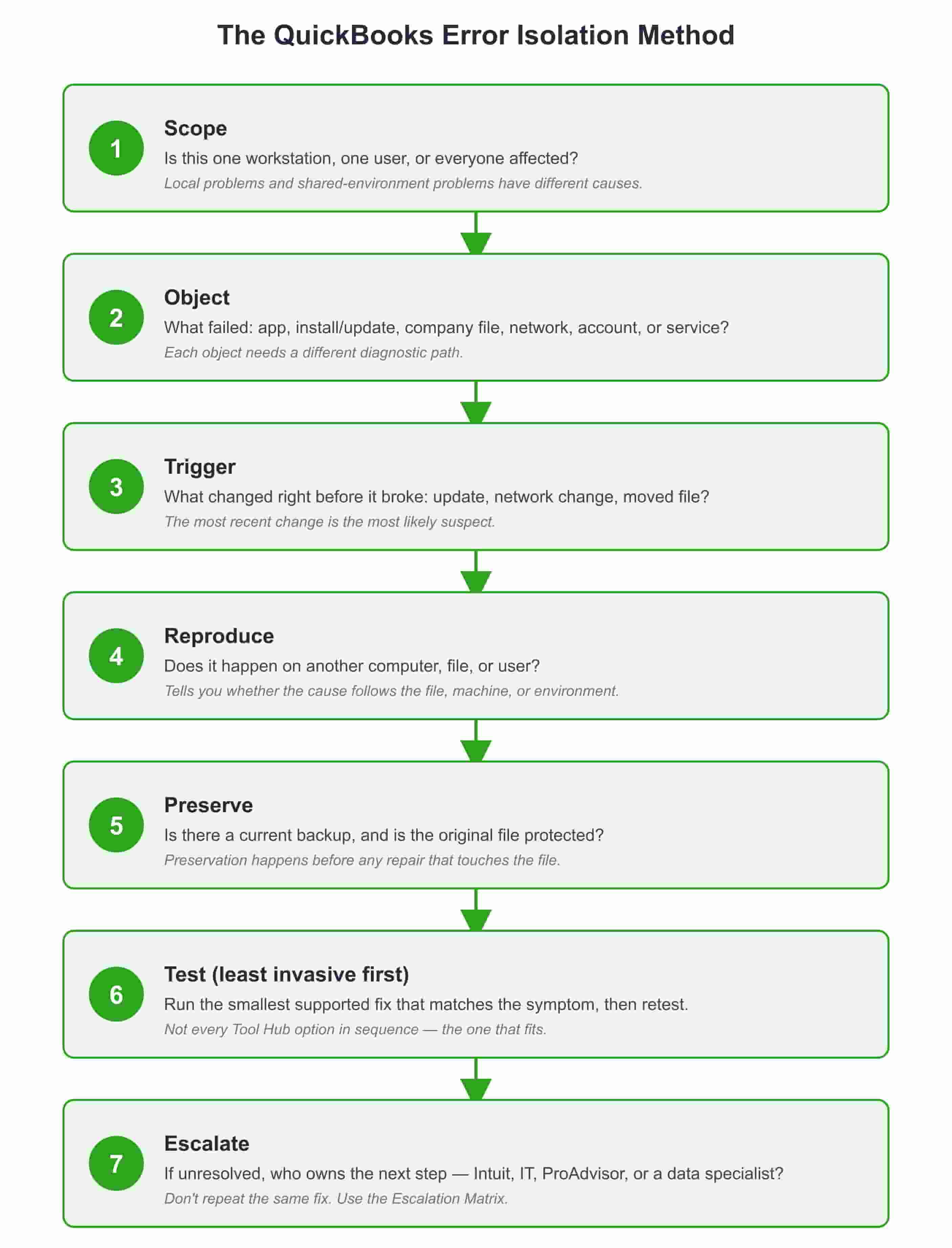
Step Question Why it matters
Step: 1. Scope
Question : Is this one workstation, one user, or everyone?
Why it matters: Local problems and shared-environment problems have almost nothing in common as root causes.
Step: 2. Object
Question : What actually failed — the application, an installation/update, the company file, the network, an account/license, or a connected service like banking or payroll?
Why it matters: Each object has a different diagnostic path. A network problem will not be fixed by reinstalling the application.
Step: 3. Trigger
Question :What changed immediately before the error first appeared — an update, a network change, a moved file, a new password, or nothing identifiable?
Why it matters: The most recent change is the most likely suspect.
Step: 4. Reproduce
Question : Does the problem happen on another computer, with another file, or for another user?
Why it matters: Reproducibility tells you whether the cause follows the file, the workstation, or the environment.
Step: 5. Preserve
Question : Is there a current, accessible backup? Is the original company file protected from further changes?
Why it matters: Preservation must happen before any repair that touches the company file.
Step: 6. Test (least invasive first)
Question: What is the smallest, most targeted, officially supported step available?
Why it matters: Run the Tool Hub tool that matches the symptom — not every tool in sequence. Retest after each change.
Step: 7. Escalate
Question: If the targeted step doesn't resolve it, who owns the next step — Intuit, an IT administrator, a ProAdvisor, or a data specialist?
Why it matters: See the Escalation Matrix. Don't keep repeating the same fix.
Every error family below maps onto this same sequence. Once you're comfortable with it, you can diagnose an error you've never seen before.
Before You Troubleshoot
Complete this once, at the start, regardless of which error you're facing. The rest of this guide will reference back to this section instead of repeating it.
Safety checklist
- Record the exact error code and full message (screenshot it).
- Confirm whether you're on QuickBooks Desktop or Online — see Desktop vs. Online.
- Determine whether one computer, one user, or everyone is affected.
- Confirm a current, accessible company-file backup exists.
- Note the QuickBooks version/year and Windows version.
- Note the company file's exact location (local, network, or hosted).
- Note any recent changes: updates, network changes, a moved file, new hardware, new passwords.
- Do not call a phone number found in a search result, ad, forum, or pop-up.
What not to do before you've diagnosed the problem
- Don't reinstall QuickBooks as a first response — it fixes some installation problems but does nothing for network, hosting, firewall, or company-file issues.
- Don't disable your firewall or antivirus permanently to "see if that's it."
- Don't download DLL files from unrelated third-party sites.
- Don't move, rename, or repeatedly copy the production company file. Preserve the original; test only with a clearly labeled copy.
- Don't delete or modify
.NDor.TLGfiles because an unofficial article told you to. - Don't grant remote access to anyone who contacted you unexpectedly.
This list applies across every error family in this guide — H-series, 6000-series, Unrecoverable Errors, installation errors, licensing, banking, and payroll alike.
Desktop vs. Online: Confirm This First
QuickBooks Desktop and QuickBooks Online are different products with different architectures, and almost nothing below applies to both in the same way. If you're not certain which one you're using, check this before going further — see converting between QuickBooks Online and Desktop if you're dealing with a migration rather than an error.
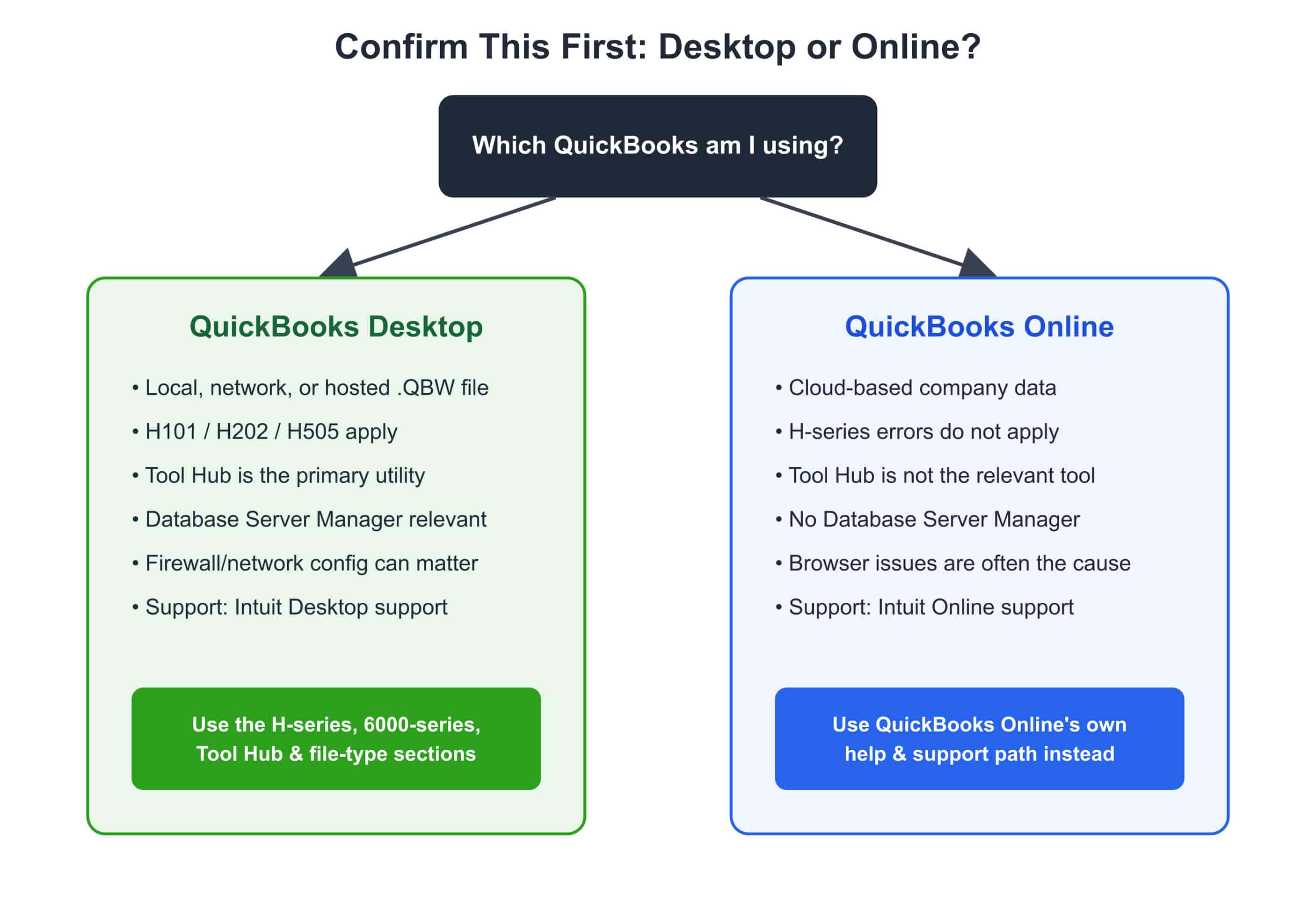
Where the data lives
- QuickBooks Desktop: Local, network, or hosted
.QBWfile - QuickBooks Online: Cloud-based
H101/H202/H505
- QuickBooks Desktop: Applies
- QuickBooks Online: Does not apply — uses a different multi-user model
Tool Hub
- QuickBooks Desktop: Primary troubleshooting utility
- QuickBooks Online: Not the relevant troubleshooting tool
Windows services / Database Server Manager
- QuickBooks Desktop: Can be relevant
- QuickBooks Online: Not applicable
Firewall/network configuration
- QuickBooks Desktop: Can matter for hosting and multi-user access
- QuickBooks Online: Usually not a factor
Browser-specific issues
- QuickBooks Desktop: Secondary
- QuickBooks Online: Often an important troubleshooting factor
Support path
- QuickBooks Desktop: Intuit QuickBooks Desktop support
- QuickBooks Online: Intuit QuickBooks Online support
If your issue involves H202, H505, Database Server Manager, an .ND file, or a local .QBW file, you're in the Desktop troubleshooting ecosystem — everything in the sections below is written for that context unless stated otherwise.
QuickBooks Tool Hub
QuickBooks Tool Hub is Intuit's official Windows utility that consolidates several supported repair tools for QuickBooks Desktop, so you don't have to reinstall the application or manually edit Windows components for common problems.
Get it only from Intuit. Search results for "QuickBooks Tool Hub" surface third-party sites that mimic Intuit's branding. Confirm the download comes from Intuit's official domain before running it — our Tool Hub reference page walks through verifying the source and installing it correctly.
How to use it
- Go to Intuit's official QuickBooks support site and locate the current Tool Hub download.
- Install it, then open it.
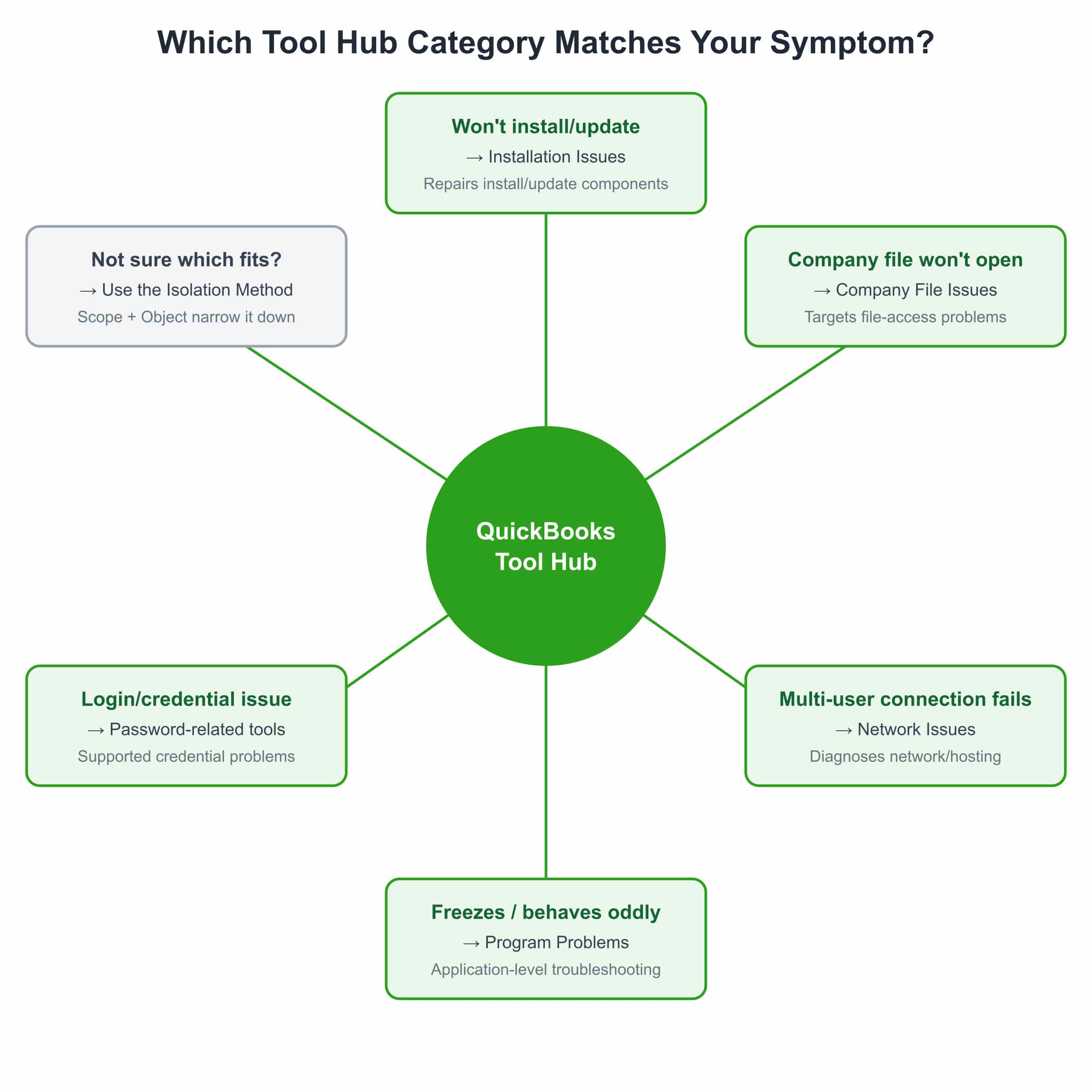
- Select the category that matches your symptom, not every category available.
- Run that one tool.
- Restart QuickBooks if instructed, then retest the original problem.
Install/update won't complete
- Tool Hub area: Installation Issues
- What it targets: Install/update-related components
Company file won't open
- Tool Hub area: Company File Issues
- What it targets: Certain company-file access problems
Multi-user connection fails
- Tool Hub area: Network Issues
- What it targets: Network and multi-user connectivity
App freezes or behaves erratically
- Tool Hub area: Program Problems
- What it targets: Application-level issues
Login/credential trouble
- Tool Hub area: Password-related tools
- What it targets: Supported credential problems
Tool Hub's exact category names change between releases — confirm current labels against Intuit's live interface before publishing screenshots or instructions.
One tool at a time. Running every Tool Hub option in sequence makes it impossible to know what actually fixed (or broke) something. Match the tool to Step 6 of the Isolation Method — least invasive test first — then retest before trying anything else.
Error Families at a Glance
- H101 / H202 / H505
- Object: Network / multi-user
- First diagnostic question: One workstation or everyone?
- Jump to: Multi-user errors
- 6000-series
- Object: Company file
- First diagnostic question: Local, network, or hosted file?
- Jump to: 6000-series
- Unrecoverable Error
- Object: Application / file / profile
- First diagnostic question: Does it follow the file or the workstation?
- Jump to: Unrecoverable Error
- 1603 / 1904
- Object: Installation / update
- First diagnostic question: Windows admin rights available?
- Jump to: Installation errors
- 3371
- Object: Licensing / entitlement
- First diagnostic question: Has the QuickBooks version changed recently?
- Jump to: Error 3371
- Bank feed errors
- Object: Connected service
- First diagnostic question: Is the bank's own site working normally?
- Jump to: Bank feed errors
- Payroll errors
- Object: Connected service
- First diagnostic question: Is a filing or pay deadline at risk?
- Jump to: Payroll errors
Multi-User Errors: H101, H202, H505
These codes generally mean a workstation cannot properly connect to the company file's hosting environment — not that QuickBooks itself is broken. Run them through the Isolation Method:
- Scope — Ask whether any other workstation can open the file. If everyone fails, the hosting computer or network is the likely object. If it's one workstation, start there.
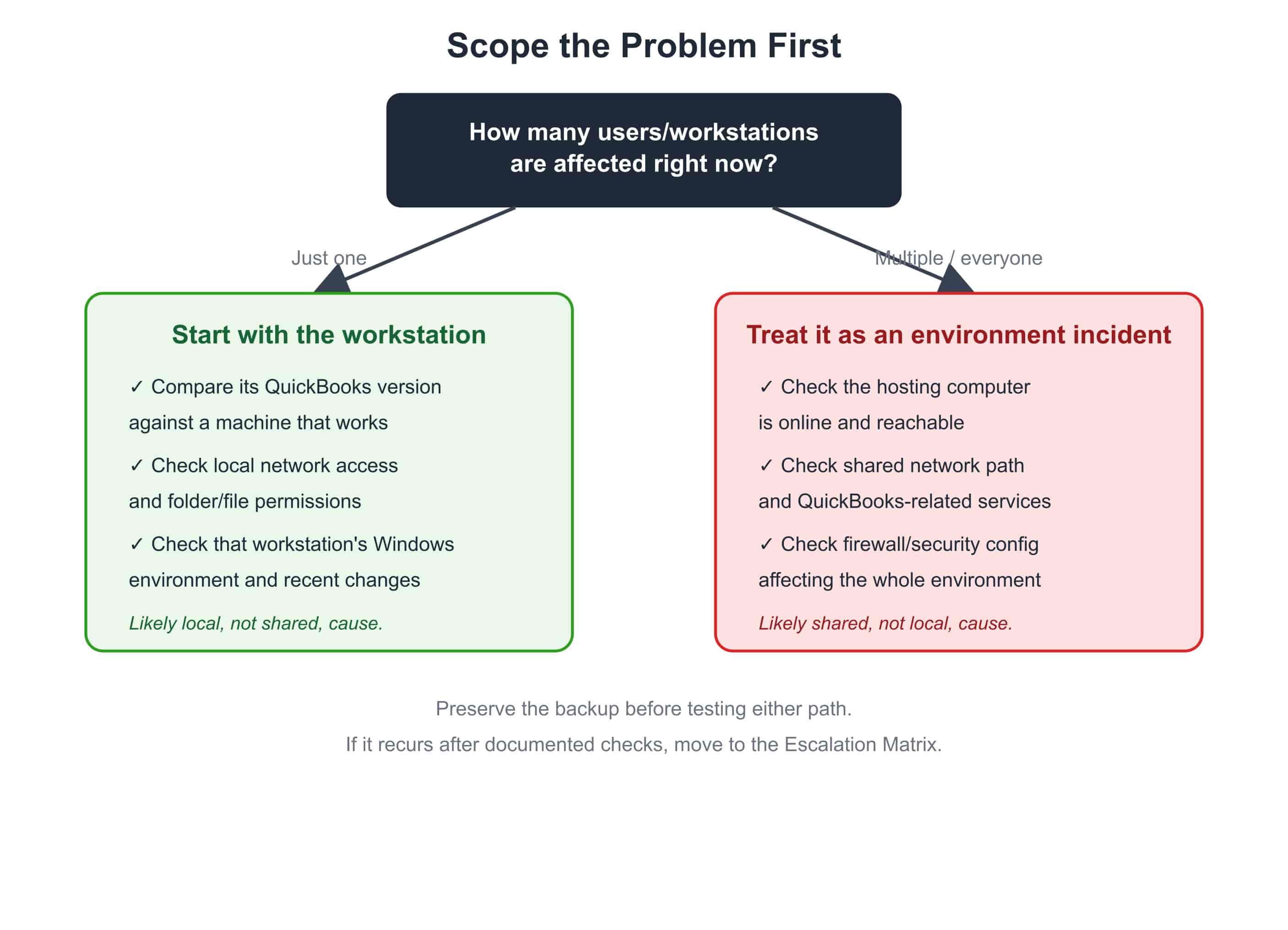
Recurring H-series errors are a signal, not a nuisance. If the same code returns after every network maintenance window, the fix isn't the fix — the environment is. Document what changed each time (Isolation Method, Step 4) so a pattern becomes visible.
6000-Series Errors
6000-series codes generally involve the company file failing to open or being unreachable — but "6000-series" is a family, not one problem. Different codes in the family have different documented causes, so confirm your exact code before assuming a fix that worked for a different 6000-series error applies to yours.
Run the Isolation Method:
- Object — Confirm the hosting computer is online and that hosting is enabled on the correct machine only (not indiscriminately on every workstation).
- Trigger — Check whether the failure started after a network change, a Windows update, or a firewall/security change.
- Reproduce — Confirm the exact code (H101, H202, or H505 have overlapping but not identical causes) and whether it's consistent or intermittent.
- Preserve — Don't move or rename the company file to "test" it.
- Test — Confirm the QuickBooks Database Server Manager service is running on the host, check firewall rules using Intuit's current version-specific guidance, and run Tool Hub's network troubleshooting.
- Escalate — If several users lose access simultaneously and the documented network/hosting checks don't resolve it, treat it as an infrastructure issue rather than repeating the same fix — see multi-user mode troubleshooting and our dedicated Error H202 walkthrough for the current step-by-step Intuit-aligned procedure.
- Scope: Can the file open on another computer?
- Object: Is the file local, on a network share, or hosted?
- Trigger: Did this start after the file was moved, renamed, or after a network change?
- Reproduce: Test with a clearly labeled copy, never the production file.
- Preserve: Confirm backup availability before anything else.
- Test: Check folder/network permissions for the affected workstation against a working one; run Tool Hub's company-file troubleshooting.
- Escalate: If the file remains inaccessible across environments, stop experimenting and involve a specialist — the file's integrity, not just its location, may be in question.
An error opening the file does not automatically mean the file is damaged. Confirm through diagnosis before assuming data loss.
For background on how .QBW, .ND, and .TLG files relate to these errors, see QuickBooks Desktop file types — and don't delete or rename any of them outside documented Intuit procedures.
Unrecoverable Error
An Unrecoverable Error can mean QuickBooks closes, freezes, or displays a specific unrecoverable-error code. Because many different conditions can produce this symptom, the diagnostic questions matter more than the code itself.
- More likely object to investigate: Application / workstation environment
- More likely object to investigate: That company file / its environment
- More likely object to investigate: User profile
- More likely object to investigate: Shared application or environment issue
- More likely object to investigate: The update itself — check for a known interaction
These are diagnostic clues, not conclusions. Confirm with Step 4 (Reproduce) before deciding on a fix: does the crash follow the file when opened on a different machine, or does it follow the workstation when a different file is opened there?
Order of operations: record the full code → confirm backup → update QuickBooks if an applicable update exists → run the matching Tool Hub program tool → retest with the isolation table above → follow Intuit's code-specific guidance → escalate if the company file appears to be involved.
Installation Errors (1603, 1904, and Similar)
- Record the complete error message — the exact wording narrows the cause more than the number alone.
- Restart Windows and confirm administrator access.
- Run Tool Hub's installation troubleshooting.
- Retry the install/update.
- If it still fails, follow Intuit's guidance for that specific code.
Skip generic "DLL fix" advice. Replacing individual Windows system files based on an unrelated website's instructions is a common cause of new problems, not a reliable fix for QuickBooks installation errors. Use official installation repair paths only. If you're specifically upgrading between Desktop Pro versions rather than fixing a failed install, see upgrading QuickBooks Desktop Pro for the supported migration sequence.
Error 3371 (Licensing/Entitlement)
3371 relates to QuickBooks Desktop's licensing information becoming unavailable or invalid — the exact cause varies by product version, so don't assume every occurrence has the same fix.
- Confirm your exact QuickBooks Desktop version and that Windows meets its current requirements.
- Follow Intuit's current 3371 guidance and run the relevant Tool Hub function if it applies to your case.
- Verify your subscription/license only through official Intuit channels.
- Never provide payment details, account credentials, or license information to anyone who contacted you unexpectedly claiming to help with a licensing error.
Bank Feed Errors
A bank-feed problem is a different diagnostic object than a company-file or application problem — don't treat it as evidence that QuickBooks itself is damaged.
- Confirm whether you're on Desktop or Online (the workflows differ).
- Check whether the bank's own website is working normally.
- Confirm whether the issue is limited to one account or affects all connections.
- Check whether the bank recently changed its login/security process — this is a common, easily missed trigger.
- Review account mapping inside QuickBooks before disconnecting/reconnecting anything, since that can affect pending or downloaded transactions.
- Follow Intuit's current bank-feed troubleshooting for your product.
Payroll Errors
Payroll deserves extra caution because tax calculations, filings, and pay deadlines can be involved.
Identify first: Desktop or Online, subscription status, the exact error code, whether one employee or the whole payroll run is affected, and whether an update is pending. Use Intuit's payroll-specific documentation rather than general repair steps.
If a filing, payment, or paycheck deadline could be affected, escalate immediately rather than continuing to test fixes — see the Escalation Matrix below.
Escalation Matrix
Use this instead of guessing whether to keep troubleshooting or call for help.
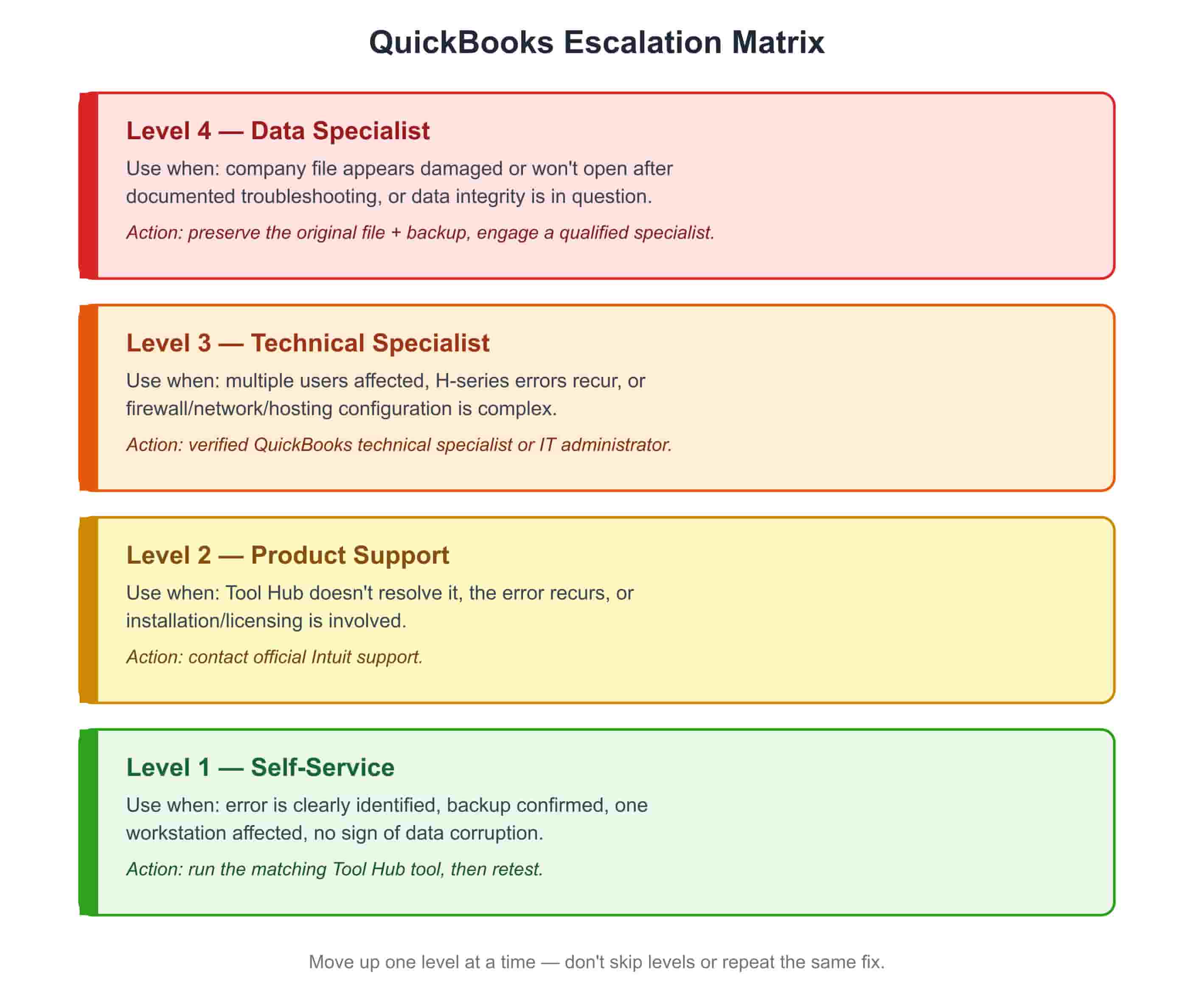
- Level 1 — Self-service
- Use when: Error is clearly identified; backup confirmed; one workstation affected; no sign of data corruption
- What to do: Run the matching Tool Hub tool and retest
- Level 2 — Product support
- Use when: Tool Hub doesn't resolve the issue; error recurs; installation or licensing is involved
- Who to contact: Official Intuit Support
- Level 3 — Technical specialist
- Use when: Multiple users are affected; H-series errors recur; firewall, network, or hosting configuration is complex
- Who to contact: A verified QuickBooks technical specialist or IT administrator
- Level 4 — Data specialist
- Use when: The company file appears damaged or remains inaccessible after documented troubleshooting; data integrity is in question
- What to do: Preserve the original file and backup, then engage a qualified data-recovery or QuickBooks specialist
Choosing between Intuit, a ProAdvisor, an IT specialist, and a data specialist:
- Best first contact: Intuit
- Best first contact: Qualified ProAdvisor
- Best first contact: IT specialist
- Best first contact: Qualified data/QuickBooks specialist
- Best first contact: Coordinated support across the appropriate specialists
Before contacting anyone, gather what they'll actually need: the exact error code, a screenshot, your QuickBooks version, Windows version, company-file location, whether one or multiple users are affected, recent changes, and what Tool Hub troubleshooting you've already run. This alone prevents most of the back-and-forth that slows down support calls.
Recognizing Legitimate Support vs. a Scam
The single riskiest moment in QuickBooks troubleshooting is calling the wrong phone number under time pressure. Go directly to Intuit's official support site yourself rather than trusting a number from a search result, ad, forum post, or pop-up.
Strong warning signs:
- The site claims to be "official" but isn't on an Intuit-owned domain.
- Someone contacted you unexpectedly about a QuickBooks problem.
- A "technician" asks for remote access before explaining the issue.
- Anyone asks for your online banking password, card PIN, or Intuit password.
- You're pressured to pay immediately or told your file is "infected" with no evidence.
Legitimate support never requires your banking credentials, card PIN, or Social Security number without a clearly verified reason. If remote access is involved, confirm independently who the provider is and what they'll be able to see before granting it.
When QuickBooks Hosting Actually Helps?
Hosting is worth evaluating when a business genuinely needs managed, reliable multi-location or remote access — it is not a universal fix for QuickBooks errors, and moving to a hosted environment won't repair damaged data, unsupported configurations, or a user-level problem that hasn't been diagnosed.
Consider it when: users need access from multiple locations, network administration is consuming significant IT time, or multi-user infrastructure is difficult to maintain internally — and only after you've confirmed the underlying issue is genuinely architectural rather than a one-off error. Before choosing a provider, verify Desktop compatibility, supported versions, backup procedures, security controls, data ownership and export process, and disaster-recovery practices.
Preventing Recurring Errors
The most effective long-term fix is removing repeat causes, not re-learning the same emergency repair.
- Document the environment: hosting computer, company-file location, QuickBooks versions, network/firewall configuration, Database Server Manager setup, authorized users, and backup process.
- Maintain backups you can actually restore: know where they're stored, how often they run, who's responsible, and that they're not vulnerable to the same failure as production data.
- Avoid unnecessary network changes — renaming servers, moving folders, or changing firewall rules without documenting the prior state is a common source of recurring H-series errors.
- Treat recurring errors as infrastructure evidence. If H202 returns every few weeks, the goal isn't to re-memorize the fix — it's to find out why the environment keeps losing connectivity.